
4.3. Using the External OPC UA Server
This tutorial shows how to use the external OPC UA server in combination with a program to exchange variables between the robot and an external device (e.g., a PLC). It also covers the process of starting and stopping programs via an OPC UA communication.
Note
To follow this example the OPC UA Custom Command package is required.
Note
The variables on the external OPC UA server exist only while a program is running. Once the program execution stops, the variables are destroyed.
4.3.1. OPC UA Server Configuration
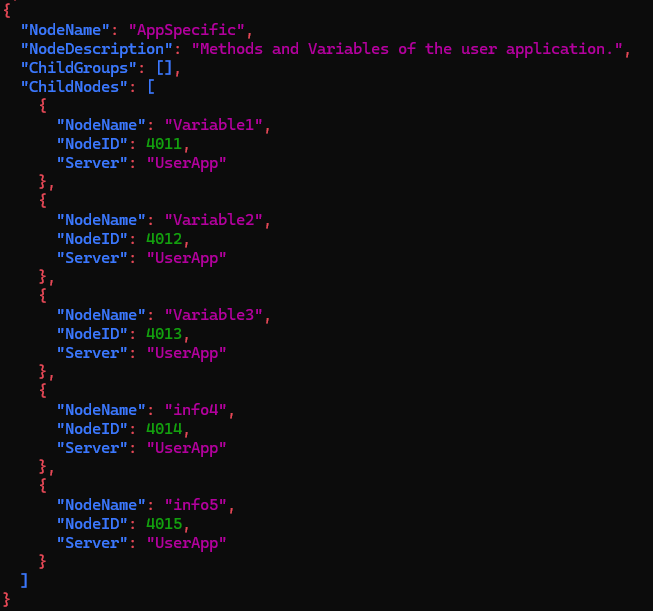
The external OPC UA server has a default configuration with five variables, which is depicted in Fig. 221. To use the server in your program, it is not required to make any changes to this configuration, and you can continue with the next section of this instruction. It is, however, possible to register additional nodes or to rename existing ones, which has no impact on the variables in your program but will be visible to other clients connected to the server.
To do this mount the file voraus-gateway/config/external-opcua.json into your host system and open it
with an editor of your choice.
Locate the node Userapp/AppSpecific and find the five default nodes named info1 to info5. Change
the names according to your needs but note that the order must match the order in which the variables are initialized in
your program (see section Set up an example program). You can add the optional attributes ReadOnly (bool)
and NodeDescription (string). The node IDs can be chosen freely as long as they are unique.
Note
The external OPC UA server is automatically started with the system. Configuration changes will be applied with the next start of the system.
4.3.2. Set up an example program
To use the external OPC UA server, either create a new program or open an existing one.
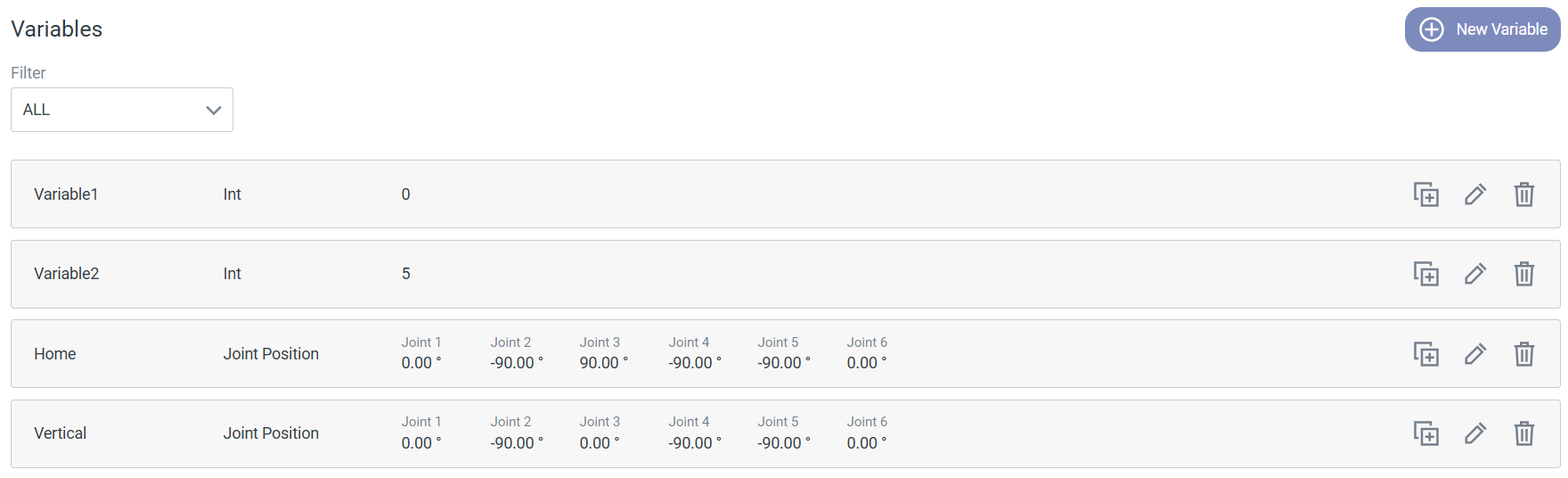
(Optional) In the Modify mode, open the Variables editor in the top-right corner and define the variables you want to transmit, as shown in Fig. 222. The supported types are integer, float, and string. Their initial value can be disregarded - this step is only for initializing the variables within the program if they are to be used with the graphical function blocks such as conditions or loops.
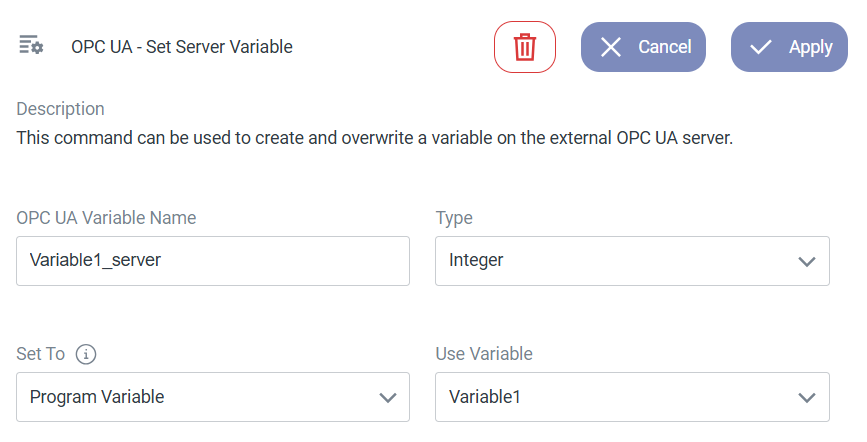
To define the program variables as OPC UA variables on the server, insert an OPC UA - Set Server Variable Custom Command for each variable at the beginning of your program. Specify the name of the variable on the server. This name does not have to match the variable name from the server configuration and will not be seen from outside the program, it is only needed for retrieving the current value via the OPC UA - Read Server Variable Custom Command later on. It can match the name in your program but does not have to. Choose the correct variable type and assign its value. You can either link it to a program variable or set a specific value directly (Fig. 223). The order in which the variables are initialized determines their order on the server, regardless of their names in the configuration file.
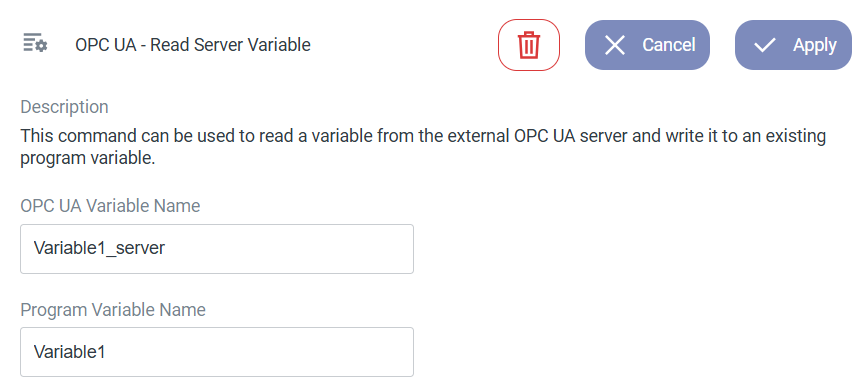
To read the current value of a variable from the server, use the OPC UA - Read Server Variable Custom Command (Fig. 224). Specify the variable’s name on the server side and the target program variable where the value will be stored.
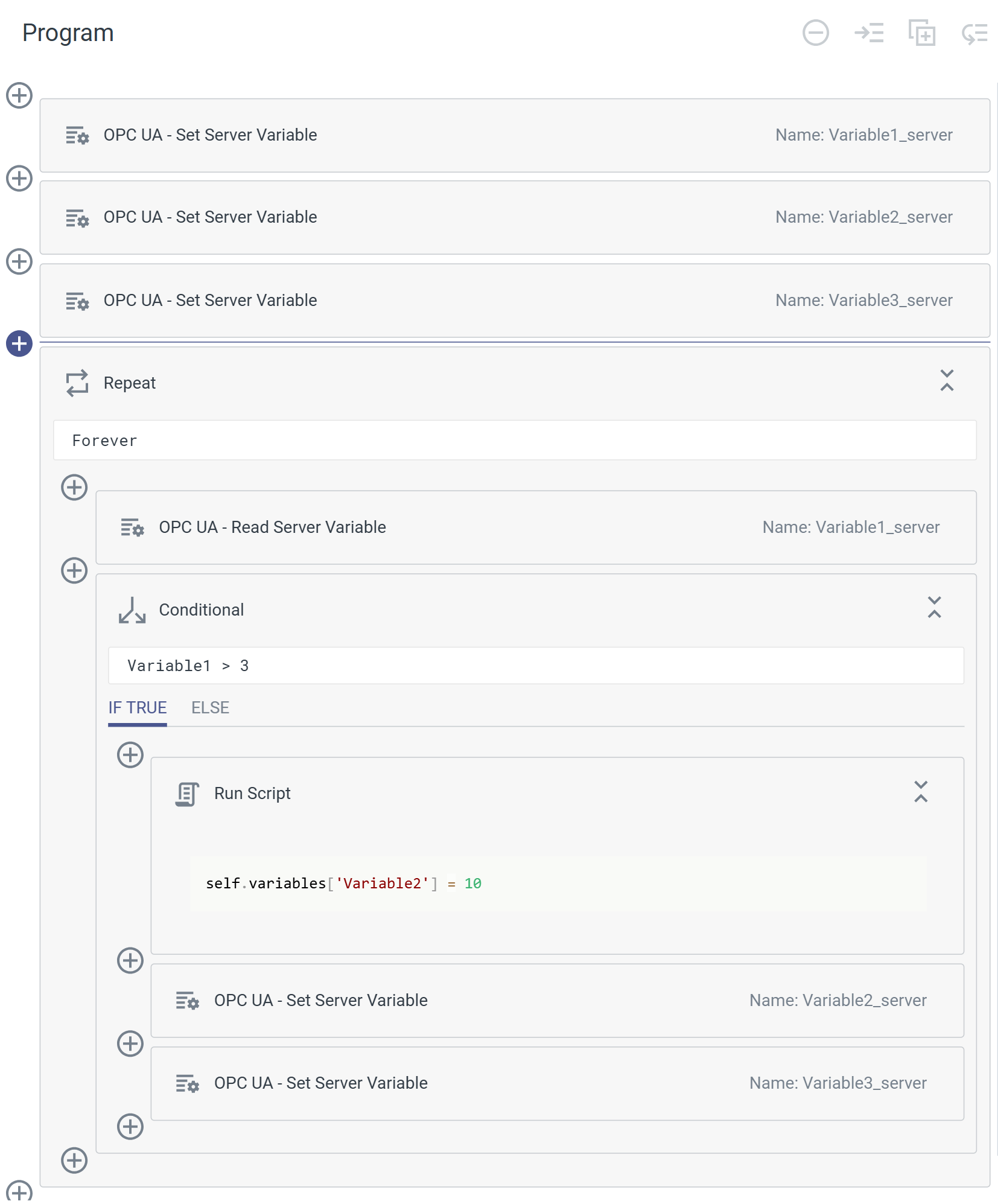
The image below (Fig. 225) illustrates an example of a program implementing cyclic OPC UA communication. At the start of the program, three variables are initialized on the server. The first two are set to the values of program variables and the third is explicitly set to 0. The main loop consists of two parts:
Reading: The value of
Variable1is read from the server and assigned to its corresponding program variable.Conditional Execution: A Conditional command determines actions based on the value of
Variable1.- If
Variable1is greater than 3: The program variable
Variable2is set to 10.The server variable
Variable2_serveris updated with the value ofVariable2.Alternatively, if the program variable is not required, the server variable (e.g.,
Variable3_server) can be directly assigned a specific value.
- If
- Else branch (not shown in the image):
Variable2_serveris set to -5.
In case you want to write the server variables with an external client you need to activate Remote Control via the status page of the HMI, see Fig. 226.

Fig. 226 Activate Remote Control to write variables on the server
4.3.3. Manual OPC UA Client - UaExpert
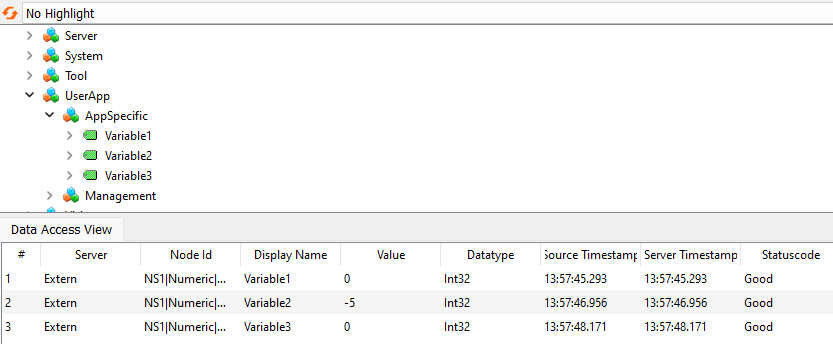
The OPC UA communication can be tested with a client such as UaExpert. Establish a connection to the external OPC UA server (opc.tcp://<robot-IP>:4840) and navigate to the node Userapp/AppSpecific. While the program is running you can see the server variables (named as in the config file). Draw them into the Data Access View to monitor their values, as seen in Fig. 227. If Remote Control is active you can also set values which will be sent to the program. Under the node Userapp/Management you can find methods to start and stop a program by its name.
4.3.4. OPC UA Client in Python
The following Python code demonstrates how to create an OPC UA client that starts a program named “External OPC
UA Server” and interacts with two nodes. It registers the node IDs, which can be customized in the configuration file on
controller 2. By default, the IDs for info1 to info5 are 304011 to 304015. The code reads the value of node2
(Variable2) and sets the value of node1 (Variable1) to 5.
  1"""Example script for using an OPC UA client directly in Python."""
  2
  3import logging
  4import time
  5from contextlib import contextmanager
  6from typing import Generator
  7
  8from asyncua.sync import Client, ua
  9
 10logger = logging.getLogger(__name__)
 11
 12
 13class OpcuaPublic:
 14    """Public OPC UA client class for handling the connection and starting a program."""
 15
 16    def __init__(self, url: str):
 17        """Initialize the OPC UA client parameters.
 18
 19        Args:
 20            url: URL for the OPC UA client in the style of opc.tcp://<IP_ADDRESS>:<PORT>
 21        """
 22        self.url = url
 23        self._client: Client | None = None
 24
 25    @property
 26    def client(self) -> Client:
 27        """Makes sure client is not None.
 28
 29        Returns:
 30            The OPC UA client.
 31        """
 32        assert self._client is not None, "OPC UA client not connected."
 33        return self._client
 34
 35    @contextmanager
 36    def open_connection(self) -> Generator[None, None, None]:
 37        """Manage the OPC UA connection.
 38
 39        Yields:
 40            None: Allows code execution within the context block while
 41            ensuring the OPC UA connection is properly opened and closed.
 42        """
 43        with Client(self.url) as public_client:
 44            self._client = public_client
 45            yield
 46
 47    def start_program(self, program_name: str) -> None:
 48        """Starts the given program.
 49
 50        Args:
 51            program_name: Name of the program, [syntax: program_'name of your program'.py].
 52
 53        Raises:
 54            RuntimeError: If the program cannot be started.
 55        """
 56        try:
 57            with self.open_connection():
 58                management = self.client.get_node("ns=1;i=107")
 59                start_user_app = self.client.get_node("ns=1;i=9010067")
 60                management.call_method(
 61                    start_user_app,
 62                    ua.Variant(program_name, ua.VariantType.String),
 63                    ua.Variant(0, ua.VariantType.UInt32),
 64                )
 65        except ua.UaError as e:
 66            msg = "Failed to start the program!"
 67            raise RuntimeError(msg) from e
 68
 69    def stop_program(self) -> None:
 70        """Stops the current program.
 71
 72        Raises:
 73            RuntimeError: If the program cannot be stopped.
 74        """
 75        try:
 76            with self.open_connection():
 77                management = self.client.get_node("ns=1;i=107")
 78                stop_user_app = self.client.get_node("ns=1;i=9010068")
 79                management.call_method(stop_user_app)
 80        except ua.UaError as e:
 81            msg = "Failed to stop the program!"
 82            raise RuntimeError(msg) from e
 83
 84
 85def main() -> None:
 86    """Run the external OPC UA client example."""
 87    opcua_client_url = "opc.tcp://192.168.1.1:4840"
 88    robot = OpcuaPublic(opcua_client_url)
 89
 90    robot.start_program("program_external_opc_ua_server.py")
 91    time.sleep(2)
 92
 93    with robot.open_connection():
 94        try:
 95            node1 = robot.client.get_node("ns=1;i=304011")
 96            node2 = robot.client.get_node("ns=1; i=304012")
 97            val = node2.get_value()
 98            data_value = ua.DataValue(ua.Variant(5, ua.VariantType.Int32))
 99            node1.set_value(data_value)
100            logger.info(f"Variable: {val}")
101        except ua.UaError as e:
102            logging.exception(f"An Exception was thrown!: {e}")
103
104    robot.stop_program()
105
106
107if __name__ == "__main__":
108    main()