
2.6.1. User Interface Overview
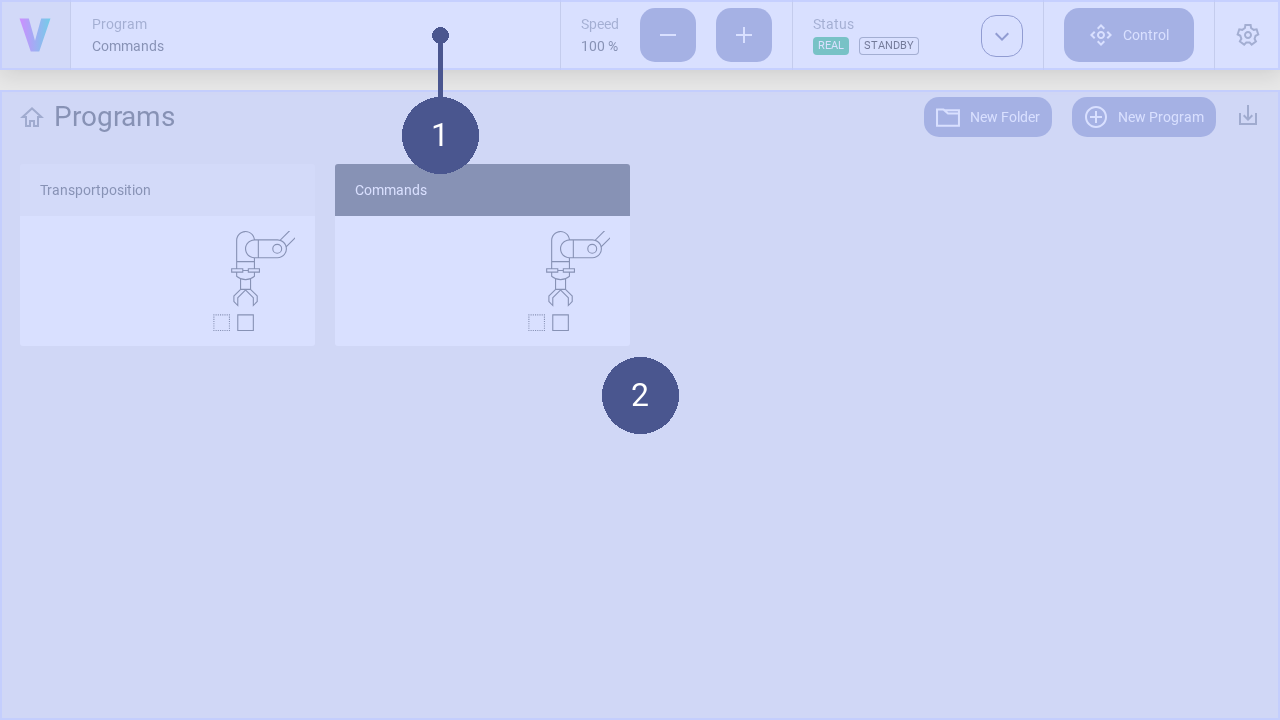
➊ Navigation bar ➋ Work window
The user interface consists of the navigation bar (Fig. 65/➊) and the work window (Fig. 65/➋). The work window and its content change dynamically. Exemplary, the home screen is shown in the work window providing quick access to applications.
In addition to the creation and management of programs, this includes manually moving of the robot and setting of the robot parameters. The navigation bar is displayed in every screen and contains the following basic commands in addition to the status message of the robot:

Fig. 66/➊ |
Logo - Return to the home screen |
Fig. 66/➋ |
Program - Displays the active program. Click to open it. |
Fig. 66/➌ |
Speed - Adapt the speed of the robot. The maximum value of 100 % the upper limit set in the settings / commands. |
Fig. 66/➍ |
Status - Displays the status of the robot. Clicking the button opens the status corresponds to menu. |
Fig. 66/➎ |
Status Quick Access - Opens the quick access menu for the operation of the robot. |
Fig. 66/➏ |
Control - Opens the manual control menu. |
Fig. 66/➐ |
Settings - Opens the settings menu. In this menu, the parameters of the robot can be set. |
General Settings
In the general settings, personal adjustments can be made, such as selecting the language and system specific information are provided. Use the following steps to navigate to the general settings page:
Click on the Settings Icon to open the settings page.
Click General in the settings menu.
Language
The language can be changed with opening the dropdown menu and selecting the desired language. Supported languages are English, German, Chinese, Japanese.
Drag & Drop
Activate or deactivate the function to drag & drop commands
Software Version
See the latest software version