
Transformation Example
In this example, you will load a model with different coordinate systems and links. You will learn how translations and rotations work on the different objects and children. The result of this example is shown in Fig. 52.
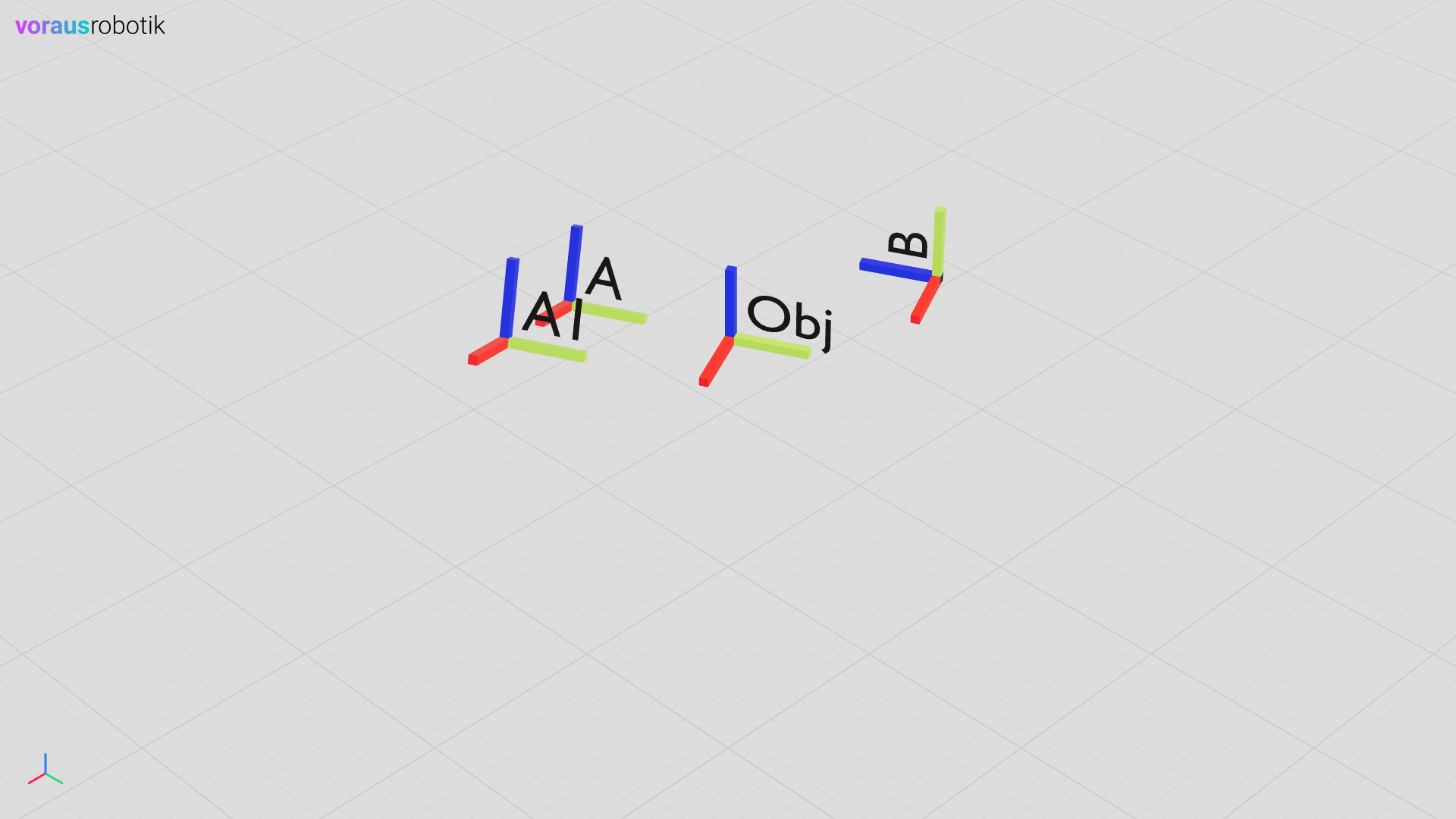
Fig. 52 Coordinate systems in the 3D visualization as result of this example
Open the Example in VS Code
Open the folder /examples/transforms/ in VS Code, press Ctrl + Shift + P
and select Dev Containers: Rebuild and Reopen in Container. It takes a moment for the dev container to be started.
Load the Coordinate Systems
The Python file transforms.py loads the 3D model of the coordinate systems into the 3D visualization.
"""Example for object and children transformation.

All children A, A1 and B are in the same model with the coordinate system 'obj'.
All transformations applied to 'obj' do also influence A, A1 and B.
A1 is linked to A such that A is the parent of A1.
"""

from math import radians
from pathlib import Path

from animation import Animation

from voraus_3d_visu import Visu

visu = Visu("http://voraus-3d-visu/", clear_all=True)
model = Path(__file__).parent / "transforms.glb"


if __name__ == "__main__":
    with visu.connection():
        obj = visu.add_model(model)
Open a terminal in VS Code and start the transforms.py Python script with the following command:
python transforms.py
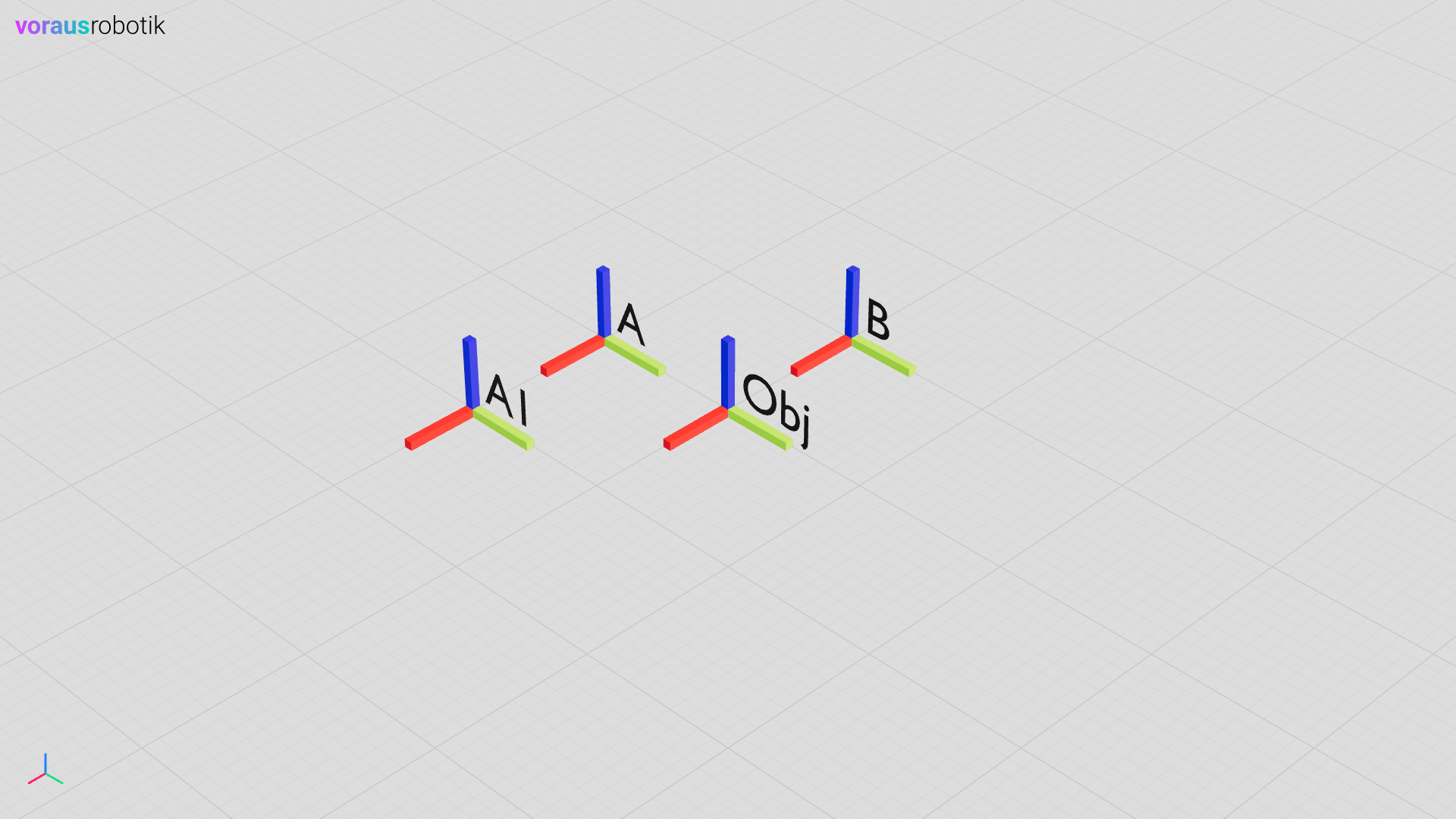
Open localhost:8077 in your web browser to display the 3D visualization. The coordinate systems will appear in the 3D visualization in the web browser as shown in Fig. 53.
Translate and Rotate the Object
After the coordinate systems have been loaded, you will now learn how to move objects with respect to coordinate
systems. The Python script transforms.py waits until you press the Enter key.
        input("Press enter to move the object with all children.")
        for step in Animation(0, -1, duration=1):
            visu.update(obj.position.y(step))
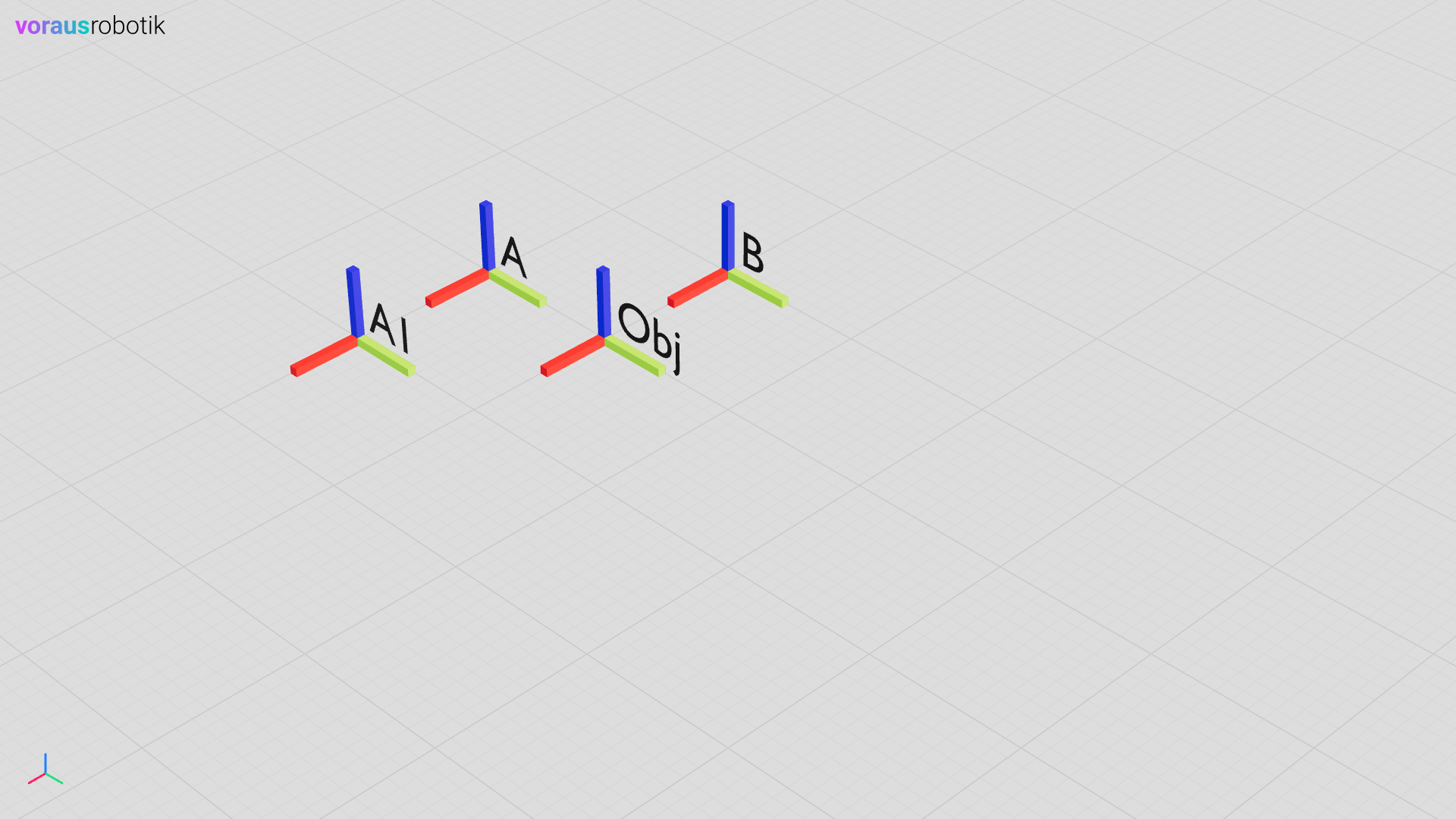
After you have pressed Enter, the obj and, therefore, the object coordinate system, is moved in negative
y-direction (within the world coordinate system, as indicated in the lower left corner). This affects all other
coordinate systems since they are all part of the object as shown in Fig. 54.
After translation, you will now rotate objects. The Python script transforms.py waits until you press the
Enter key again.
        input("Press enter to rotate the object with all children")
        for step in Animation(0, radians(25), duration=1):
            visu.update(obj.rotation.z(step))
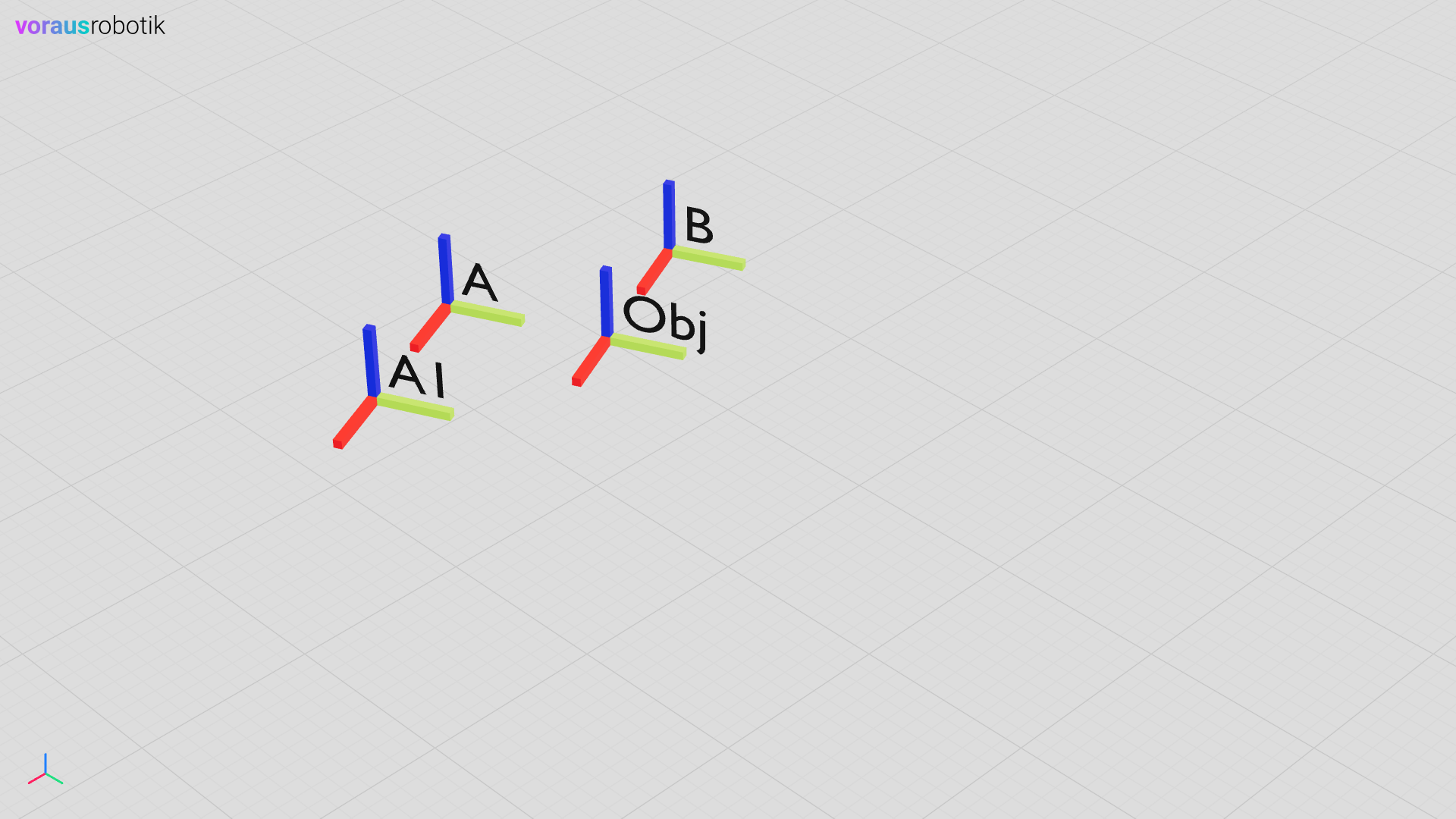
Once you have pressed Enter, the obj and, therefore, the object coordinate system,
is rotated around the z-axis (within the world coordinate system).
This affects all other coordinate systems since they are all part of the object
as shown in Fig. 55.
Reload with Initial Transforms
The Python script transforms.py waits until you press the Enter key again:
        input("Press enter to reload model with initial transforms.")
        visu.client.clear()
        obj = visu.add_model(
            model,
            position=[-0.5, -0.5, 0],
            rotation=[0, 0, radians(26)],
        )
After you have pressed Enter, the visualization is cleared and the obj is reloaded
with initial pose (i.e., position and rotation). Therefore, the object coordinate system
is moved in negative x- and y-direction and rotated around the z-axis (within the world coordinate system).
This affects all other coordinate systems since they are all part of the object
as shown in Fig. 56.
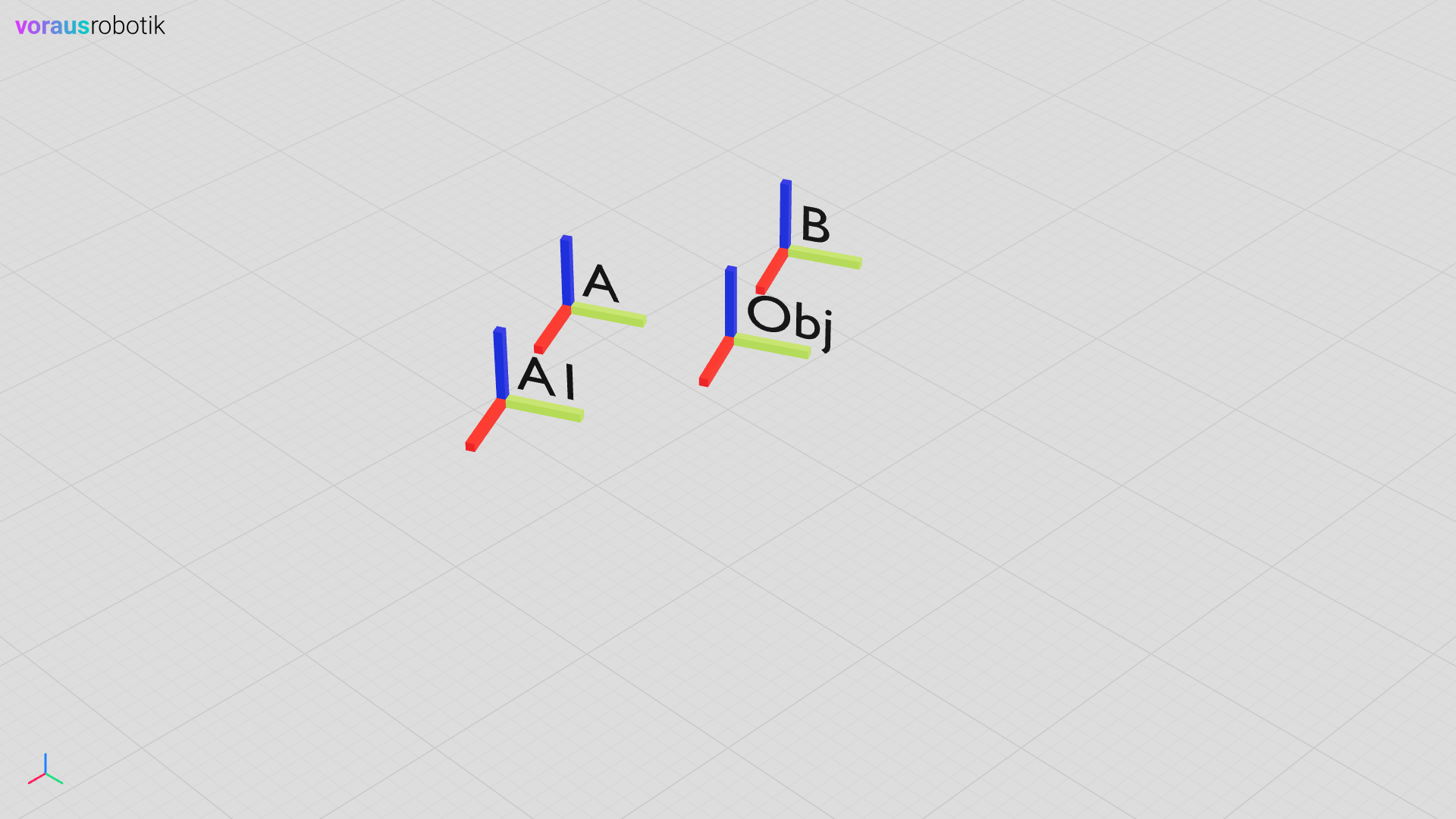
Fig. 56 The obj in the 3D visualization with initial transforms
Rotate and Move the Child B
The Python script transforms.py waits until you press the Enter key again:
        input("Press enter to rotate B in obj CS.")
        for step in Animation(0, radians(90), duration=1):
            visu.update(obj.child("B").rotation.x(step))
Once you have pressed Enter, the child "B" and, therefore, the B coordinate system
is rotated around the x-axis (within the object coordinate system), see Fig. 57.
Note
The child "B" refers to the name of the child as defined in the glTF file.
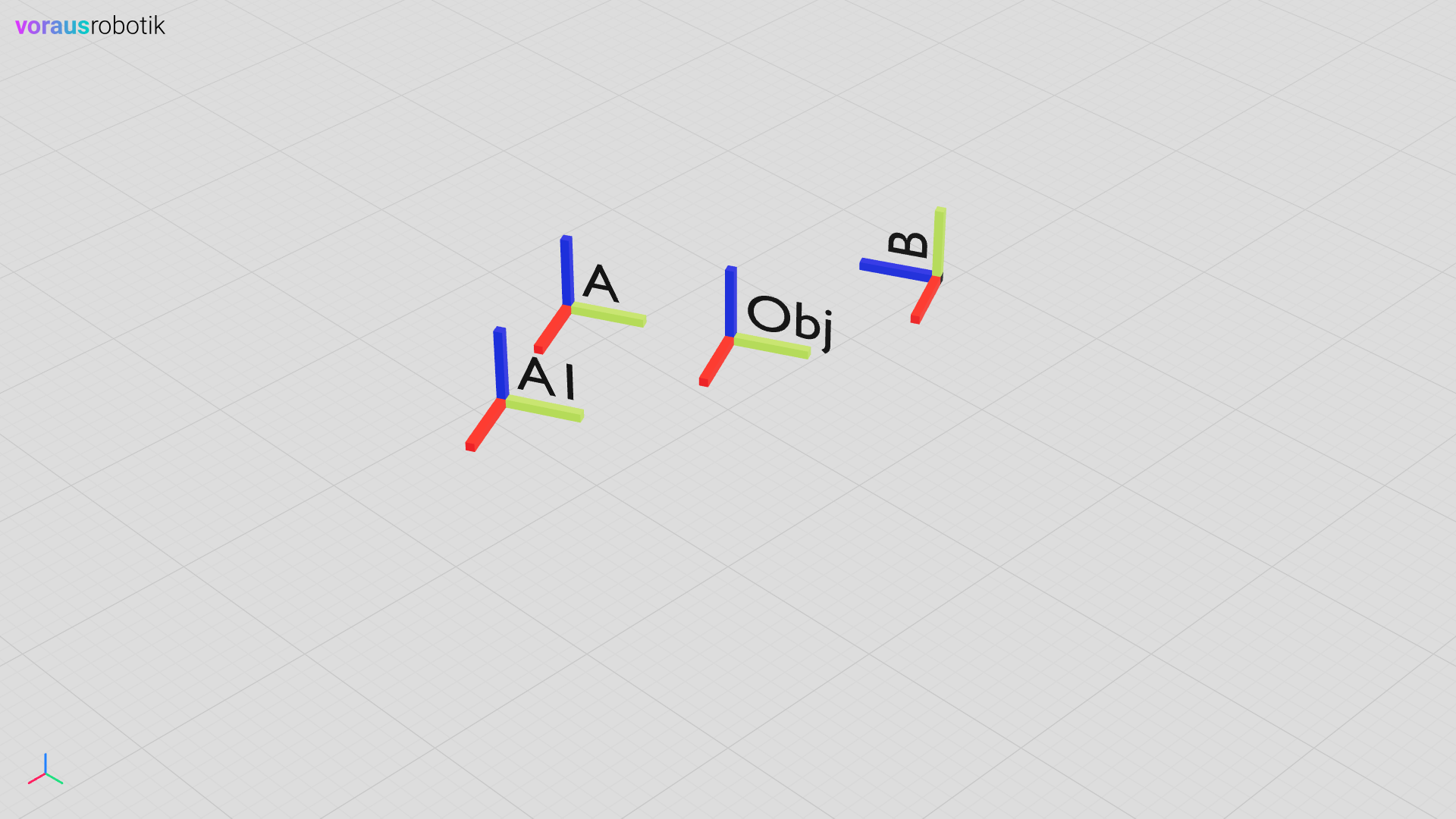
Fig. 57 Child "B" after rotation around x-axis of the object coordinate system
The Python script transforms.py waits until you press the Enter key again:
        input("Press enter to move B in obj CS.")
        for step in Animation(0, 1.0, duration=1):
            visu.update(obj.child("B").position.y(step))
After pressing Enter the child "B" and, therefore, the B coordinate system,
is moved in negative y-direction (within the object coordinate system)
as shown in Fig. 58.
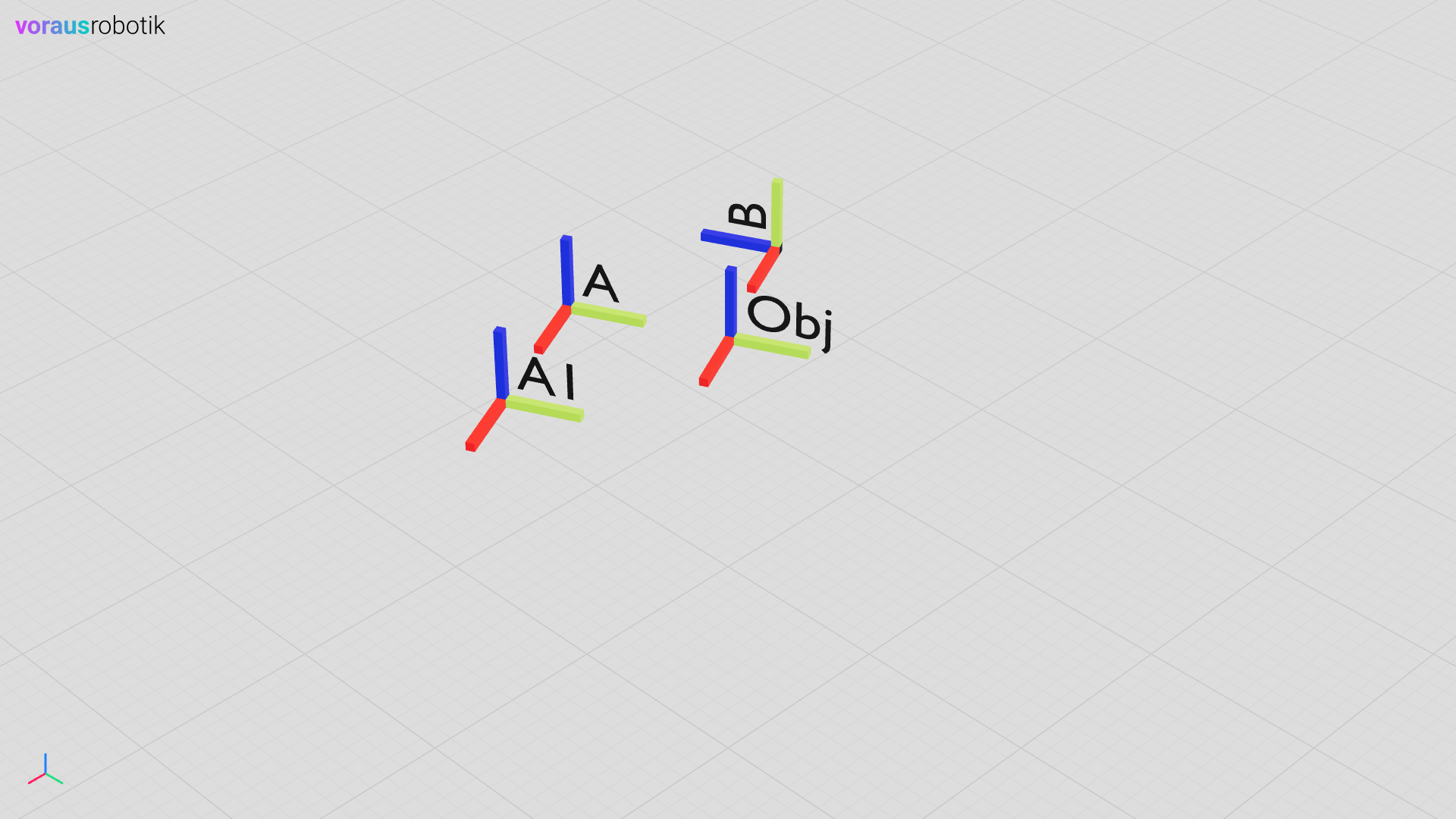
Fig. 58 Child "B" after translation in negative y-direction of the object coordinate system
Rotation of the Child A
The Python script transforms.py waits until you press the Enter key again:
        input("Press enter to rotate A in obj CS.")
        for step in Animation(0, radians(-20), duration=1):
            visu.update(obj.child("A").rotation.y(step))
Once you have pressed Enter, the child "A" and, therefore, the A coordinate system,
is rotated around the y-axis (within the object coordinate system).
This also influences the child "A1" of "A" as shown in the image below.
Fig. 59 Child "A" and "A1" after rotation around the y-axis of the object coordinate system
Translation of the Child A1
The Python script transforms.py waits until you press the Enter key again.
        input("Press enter to move A1 in A CS.")
        for step in Animation(1.0, 0, duration=1):
            visu.update(obj.child("A1").position.x(step))
After you have pressed Enter, the child "A1" and, therefore, the A1 coordinate system,
is moved in negative x-direction (within the A coordinate system) since "A1" is linked to "A".
The result of the movement is shown in Fig. 60.
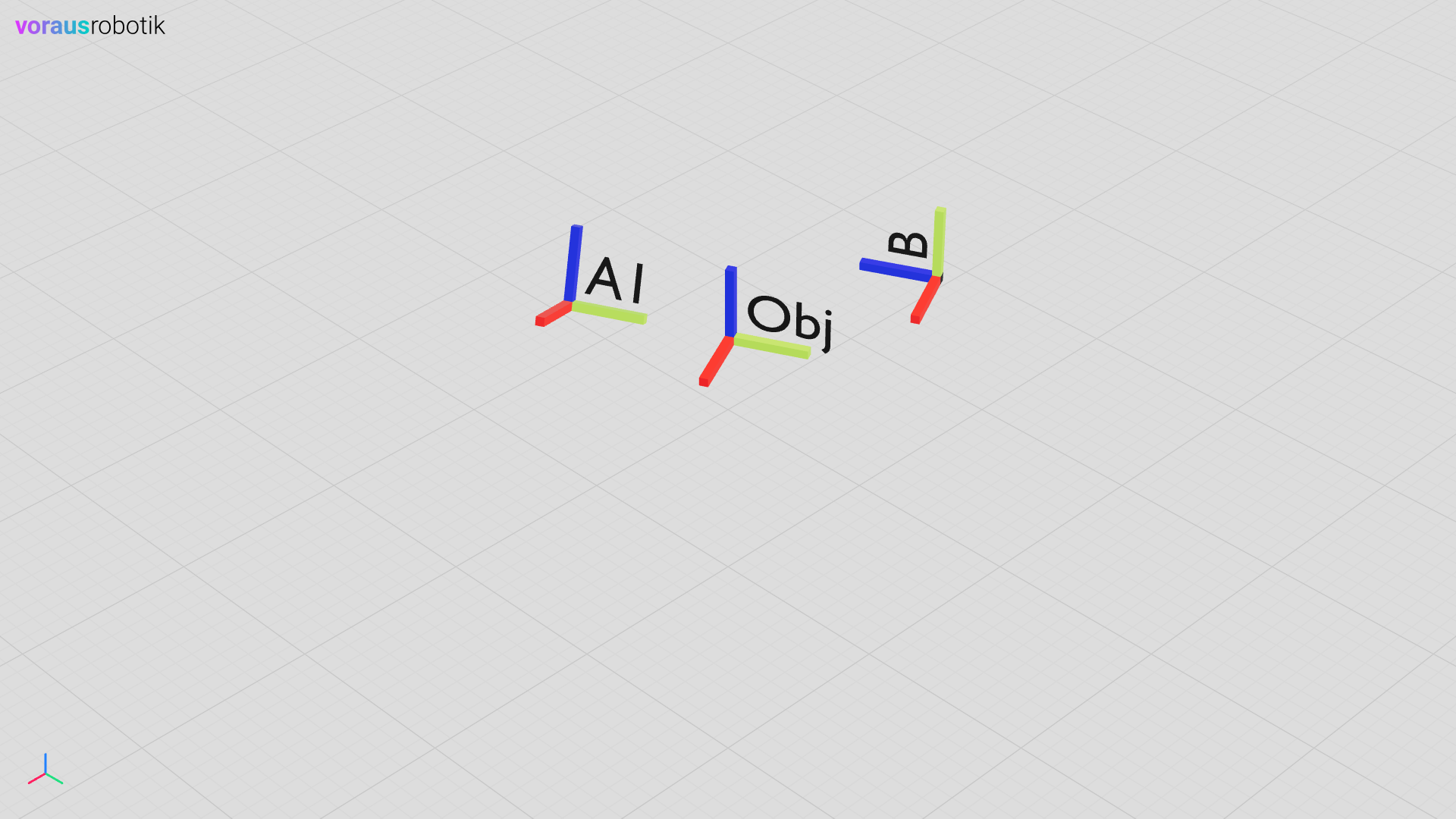
Fig. 60 Child "A1" after translation in negative x-direction of A coordinate system
Docker Compose File
Three services (Docker containers) are defined in the docker-compose.yml file. The CodeMeter service is required
for licensing the software and the voraus 3D Visu service starts the web-based 3D visualization backend.
The dev container service is intended for development with VS Code. The complete Docker Compose file is shown below.
docker-compose.yml
 1services:
 2  codemeter:
 3    hostname: codemeter
 4    image: docker.io/wibusystems/codemeter:9.10
 5    environment:
 6      CM_REMOTE_SERVER: host.docker.internal
 7    extra_hosts:
 8      - host.docker.internal:host-gateway
 9
10  voraus-3d-visu:
11    image: voraus.jfrog.io/docker/voraus-3d-visu:3.1.2 # x-release-please-version
12    hostname: voraus-3d-visu
13    ports:
14      - 8077:80
15    environment:
16      CODEMETER_HOST: codemeter
17    depends_on:
18      codemeter:
19        condition: service_healthy
20
21  devcontainer:
22    image: voraus.jfrog.io/docker/voraus-3d-visu-dev-container:3.1.2 # x-release-please-version
23    volumes:
24      - .:/home/localuser/workspace:cached
25    command: /bin/sh -c "while sleep 1000; do :; done"
26    environment:
27      CODEMETER_HOST: codemeter
28    depends_on:
29      codemeter:
30        condition: service_healthy